Showing posts with label Google Slides. Show all posts

Sunday, January 5, 2025

One Word of the Year - Google Slides Photo Word Template

The idea of choosing one word for the year has become a very popular activity to do. It can be a helpful way for anyone to set a goal to work toward or a focus to work on throughout the year.

There are lots of templates and tools to help you do this, but a couple years ago I tried this out by creating what I called a "Photo Word" in Google Slides. This is basically a clever way to make it look like you have a picture inside of a word.

If you want to learn all the gory details about that you can check out my earlier blog post as well as my short intro video and my very long deep dive video all about creating Photo Words.

However, to make things super simple I have a Google Slides template that you can copy and edit to make your own "One Word" for the year.

See below for a link to the template and a short tutorial video on how to make your "One Word" for the year.

Monday, November 11, 2024

Build a "What I Am Thankful For" Turkey with Google Slides

With Thanksgiving right around the corner, now is a great time for all of us to pause and think about what we are thankful for.

To help out with this I have created a Google Slides activity for your students. With this template your students will build a turkey where each of the feathers will display things that the student is thankful for.

Optionally the students can also use the Mote Chrome extension to record themselves explaining what they are thankful for, and adding that audio to their digital turkey.

See below to get your free copy of the "What I Am Thankful For" Turkey template, as well as a short video and detailed directions on how to use it.

Tuesday, October 15, 2024

Creating Soundboards with Google Slides for Stories, Games and More

How can you bring some extra life into your class activities, discussions, and games? Ding, Ding, Ding! Yes, that's right, with your own custom soundboard.

A soundboard can be used in your class for many purposes:
  • It could provide fun sound effects for class games, quizzes, and competitions.
  • You could use the soundboard for audio cues for classroom transitions, such as indicating when time's up, or students need to clear their desks, or switch groups, or such.
  • The soundboard could be used while you are reading a story out loud to your students, to bring the story to life with sounds from the story content.
  • You could use the sounds to support and reinforce content being taught in class.
  • If you or your students are recording podcasts and videos, a soundboard can be used to for effects and transitions while recording.
  • And more!
There are certainly lots of options for classroom soundboards, but one free and easy tool for this is Google Slides. With Google Slides you can create your own custom soundboard with audio that you have recorded or downloaded from free audio sites.

See below for details on how to do this. You will find a 21-minute video I did for MoteCon24 where I go through all the steps, as well as links to my associated resource document, session slideshow, sample soundboard, and more.

Tuesday, October 8, 2024

4 Googley Halloween Learning Activities

Halloween is one of my favorite holidays. I already love the Fall with the change in temperature, beautiful leaves, and the smell of logs in our fireplace.

And Halloween is one of the high points. I love walking my grandkids around their neighborhood as we go trick-or-treating, and try my best not to eat too much of their candy.

Most years I even try to dress up for the occasion, although having a beard does somewhat limit my options. My go-to costume recently has been none other than Bob Ross!

Another favorite thing I have done is to create Halloween-themed educational activities with Google tools including:

🎃 Build a Jack-O-Lantern with Google Slides

👻 Halloween Rebus Stories with Emojis and Google Docs

🦇 Halloween Drag and Drop Poetry with Google Drawings

💀 Skittles and Google Sheets Math Activities


For convenience I decided to pull all of them together in one blog post. See below for details on each activity and links to the resources and templates.

Wednesday, September 25, 2024

Jam Slides - Google Slides Replacement Template for Jamboard

Last year Google announced that they would be shutting down Jamboard, which was a collaborative digital whiteboarding tool. According to Google's timeline, as of October 1, 2024, Jamboard will become view-only, and as of December 31, 2024, the tool will shut down entirely.

This announcement was a great disappointment to many educators who have come to rely on Jamboard for teaching and learning.

Since then many other tools have been explored as potential replacements for Jamboard including Figjam, Lucidspark, Miro, Padlet Sandboxes, Canva, and more. I have even hosted an intro and advanced webinar on moving from Jamboard to Figjam.

All of these are excellent tools and I encourage you to test them out. However, I would like to suggest one other option to consider … Google Slides.

Although no tool is an exact replacement for Jamboard, Google Slides is actually very similar. In addition, it is a Google tool, so you and your students already have access to it and are probably pretty familiar with how it works.

To make this transition even easier, I have created a free Google Slides template that you can copy and use. This "Jam Slides" template is designed to help you mimic all of the features from Jamboard in Google Slides.

See below to get your own copy of the template, and to watch a tutorial video where I use this template and go through each Jamboard feature one by one and show how they can all be done in Google Slides.

Saturday, August 10, 2024

Learn your New Students with Google Slides

One of the first things every teacher wants to do each year is memorize their students faces and names. This makes a personal connection to each of your students and helps them feel welcome and valued in your class. The last thing we want to do is call a student by the wrong name or have to resort to a "Hey you".

When I was first teaching (back in 1992, you do the math) I took pictures of my new students on the first day of class with an old camera with 110 film. I then would get the pictures developed at my local drug store and would attach the photos to 4x6 cards I had the students fill out with their names and details about themselves.

These became my flashcards so I could learn my students names, faces, and key details about each of them. I would practice with these for the first week or so of school to make sure I learned all 130 or so new students I had that year.

Well now with technology there are so many better and faster ways to do this. For one example I have created a Google Slideshow template that you can use to help learn your students names and faces and a little about them. You can even randomize the slides for better quizzing of yourself. See below to get your copy of the template and directions for how to use it.

Monday, July 8, 2024

Recorded Webinar - Storytelling Activities with Google Tools

I recently had the pleasure to present sessions at the High Impact Conference for Educators, which is an event we put on through the Educational Service Center where I work. All of my sessions were recorded, and over time I hope to share several of the videos.

Please note that the recordings are a lot more casual than some of my other videos, as this is from an in-person conference with a room full of attendees, so there is some chatting and questions and such. Hopefully though you will still find the content helpful.

For this recording, this is the session:

Once Upon a Google: Innovative Storytelling with Google Tools
Google tools provide many ways for students and educators to create and share stories. Slides can be used to create storybooks, e-books, comic strips, stop-motion animation, and story soundboards; Docs can be used for "Choose Your Own Adventure" stories, emoji rebus stories, and black-out poetry; Sheets can be used to create random writing prompts for inspiration, and more!

See below for the full recording, as well as the resources from the session. Please feel free to reach out with any questions, feedback, or suggestions you have on this topic.

Tuesday, November 28, 2023

8 Googley Wintertime Activities for Kids

As we get closer to the holiday break, it is expected and understandable that our students start getting a little distracted. They are looking forward to lots of days off, holiday celebrations, gifts, and more. Let's be honest … we may be a little distracted as well.
 
This is a time of year when we look for some fun activities to keep our students focused and active. But we don't just want busy work. If possible it is great to find projects that are fun, tie into wintertime themes, and still provide our students with a chance to be creative, write, or improve some content area skills.

To help out with that, I have put together eight wintertime-themed activities that use free Google tools, including Docs, Slides, Sheets, and Drawings:

⛄ Activity #1 - Build a Snowman with Google Slides
🎄 Activity #2 - Decorate a Holiday Tree with Google Slides
🧲 Activity #3 - Wintertime Magnetic Poetry with Google Drawings
📬 Activity #4 - Holiday Greeting Cards with Google Drawings
🎁 Activity #5 - "12 Days of Christmas" Guided Google Sheets Math Activity
🌟 Activity #6 - Pixel Art Ornaments with Google Sheets
❄️ Activity #7 - Wintertime Emoji Rebus Stories with Google Docs
💡 Activity #8 - Holiday Lights Writing with Google Docs

Some of these are projects I have shared in the past, while others are new twists on previous posts. Hopefully some of these will be a good match for your students to keep them busy AND learning as we head into the holidays.

Sunday, August 20, 2023

Active Learning with EduProtocols and Google Tools

I am always looking for activities that get students thinking critically, collaborating, creating, communicating, and basically being engaged in the learning process. Recently I had the opportunity to record a training session on just that.

The session was "Active Learning with Google Tools" which focuses on using EduProtocols with your students.

If you are not familiar with EduProtocols, they are defined as follows:
  • EduProtocols are instructional lesson frames that are designed to engage students in learning through critical thinking, collaboration, communication, and creativity.  
  • EduProtocols can be used with any subject, any grade level, kindergarten through adult.
In this training session we explore three example EduProtocols including Sketch & Tell, Tier List, and Iron Chef.

See below for the 43-minute recorded video of the training, as well as access to the session resource documents and details.

Wednesday, July 5, 2023

AI Images in Google Slides

A while back, Google announced a new set of AI tools coming for Google Workspace which they are calling Duet AI. These features help you create with AI right inside of Docs, Slides, Sheets, Meet, Gmail, and more.

I recently got access to the new Duet AI integration for Google Slides called "Help me visualize". This is a text to image tool that lets you type in a description of the picture you want, and then the AI creates several images to match your request.

Text to image generation is a popular and powerful AI tool as seen in DALL-E, Midjourney, Canva, Bing Image Creator, Adobe Firefly, Scribble Diffusion, and other services. It is exciting to see this feature now available right inside of Google Slides.

See below for my demonstration video and detailed directions and examples on using Duet AI in Google Slides to generate images from text.

Friday, April 7, 2023

EdTech Spotlight - Stickity

EdTech Spotlight posts are shorter entries (as compared to my normal full-sized posts) that highlight a specific educational technology resource.

These normally contain a video clip of me talking about and demonstrating the resource. These video clips are taken from my weekly live streams that I record on Monday nights at 7pm EST. These videos are more casual and conversational than my pre-recorded edited tutorial videos.

For this entry we are taking a look at Stickity.

See below for a video clip about this resource, as well as a brief explanation and relevant links. If you use this resource, I would love to hear about your experience!

Tuesday, March 28, 2023

15 Updates to Make Google BETTer

This week Google is in London at BETT, the world’s biggest educational technology exhibition. At the event, companies from all around the world show off their latest and greatest innovations for educational technology.

Google is using this opportunity to showcase new updates for Google Workspace for Education. These updates include new features for Google Classroom, Docs, Slides, Meet, Chromebooks, Security, and more!

Although I have never been to BETT yet (definitely a goal for the future!) I wanted to share all of these new updates with you. See below for my rundown of everything new that Google is announcing. For each item I give the gist of what is new as well as how these updates can make teaching and learning BETTer.

Sunday, March 5, 2023

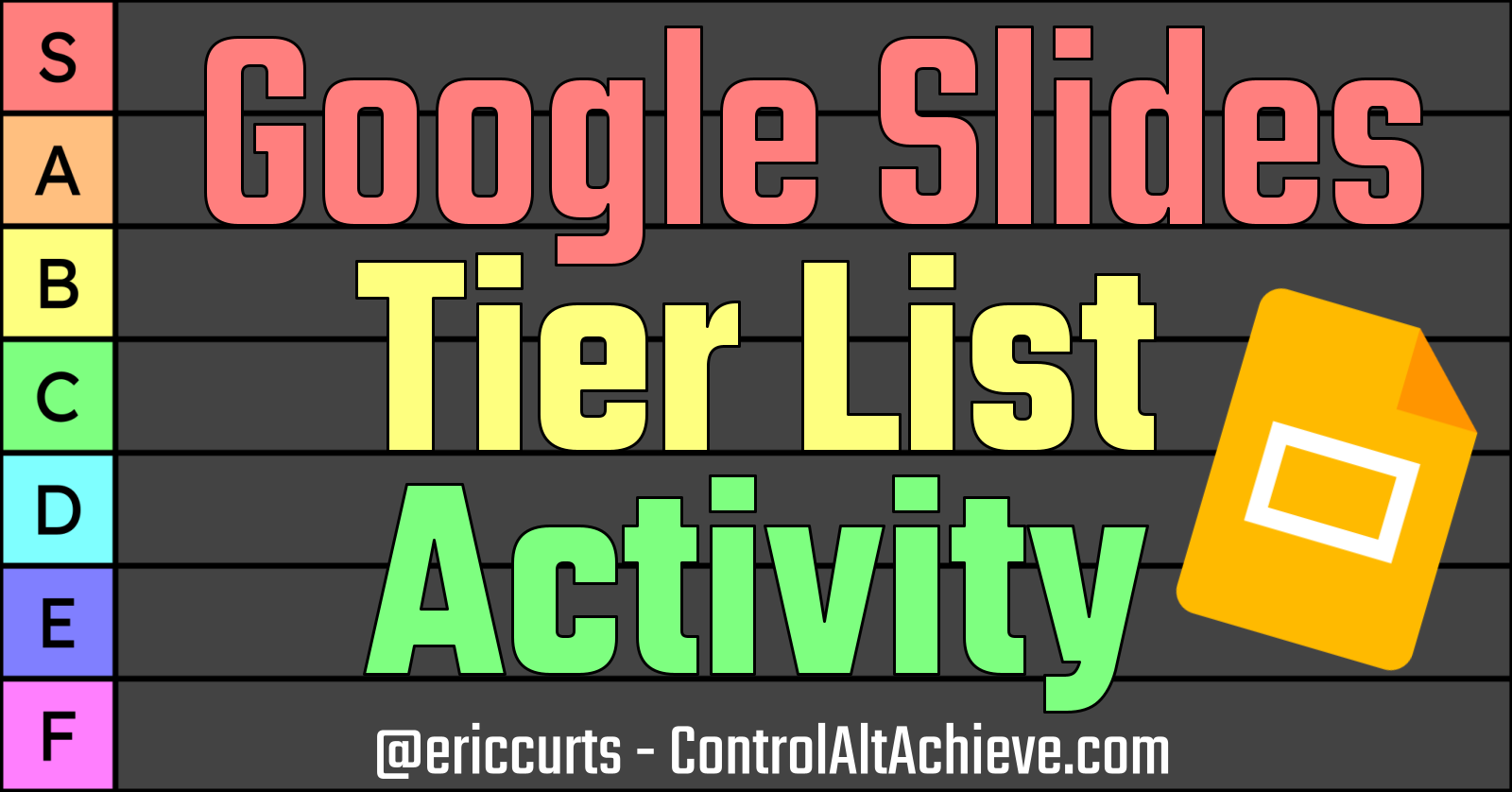
Google Slides Tier List Activity

I am always looking for ways to engage students in critical thinking and communication.

Recently I have been working on an activity that gets students comparing, contrasting, and prioritizing concepts, as well as defending the rationale for their claims.

This activity is based on something called a "Tier List".

A tier list is a concept that was originally developed in the video game culture where people would rank characters or items from the game based on how important they were. Typically the levels would be letter grades such as A through F, but often with the addition of an S-level that would be the highest rank (from Japanese word for "Exemplary").

Over time people have used the tier list format to rank a wide range of concepts, which I thought would work great for students. What I came up with is a Google Slides "Tier List" activity for schools:
  • It is a high engagement student activity
  • It encourages critical thinking, communication, comparing, contrasting, prioritizing, and defending rationales
  • It can be used in any subject or grade level
  • It should only take 15 to 30 minutes, and can be used multiple times throughout the year with different content.
See below for all the details about this activity including a tutorial video, examples, and templates you can make copies of.

Friday, January 13, 2023

Google Slides Photo Words - Advanced Webinar

I recently shared my blog post and tutorial video about creating "Photo Words" with Google Slides. This is a fun activity for students to take any word and put an image inside of the word.

This engaging project can allow student to:
  • Visualize any vocabulary word
  • Create a "One Word" for the year
  • Summarize a story
  • Learn a new word (in their language or other)
  • Represent a location
  • Tell about themselves
  • Recap a year
  • Make a logo
  • And so much more!
My original blog post and 16-minute tutorial video were designed to help you and your students learn the basics of this activity, but there was so much more that I couldn't cover in the short introductory video.

To help with this I did a 90-minute live-stream webinar where we did a deep dive into creating Photo Words. In the video I go step-by-step through the process of creating four different advanced designs.

See below to access the recorded webinar video, as well as other support resources from the training. And again, I would love to see what you and your students create!

Sunday, January 8, 2023

Creating Photo Words with Google Slides - How to Place an Image inside of Text

I am always excited about discovering new ways to use Google tools for creativity. Recently I have seen some people sharing some cool designs where they placed images inside of text to create what I am calling a "Photo Word".

As I looked into this many of them were being created with Photoshop or some other graphics editing tool. As awesome as that is, not everyone has access to those tools.

So I asked myself the question I usually ask in this situation, "Is there any way to do this using Google tools?"

And the answer is … YES!

Just using Google Slides, I was able to create all sorts of creative designs by putting photos inside of text, which can be an engaging project for students or for anyone.

See below for a short tutorial video and written directions on how to do this.

Monday, November 28, 2022

8 Googley Wintertime Activities for Kids

As we get closer to the holiday break, it is expected and understandable that our students start getting a little distracted. They are looking forward to lots of days off, holiday celebrations, gifts, and more. Let's be honest … we may be a little distracted as well.
 
This is a time of year when we look for some fun activities to keep our students focused and active. But we don't just want busy work. If possible it is great to find projects that are fun, tie into wintertime themes, and still provide our students with a chance to be creative, write, or improve some content area skills.

To help out with that, I have put together eight wintertime-themed activities that use free Google tools, including Docs, Slides, Sheets, and Drawings:

⛄ Activity #1 - Build a Snowman with Google Slides
🎄 Activity #2 - Decorate a Holiday Tree with Google Slides
🧲 Activity #3 - Wintertime Magnetic Poetry with Google Drawings
📬 Activity #4 - Holiday Greeting Cards with Google Drawings
🎁 Activity #5 - "12 Days of Christmas" Guided Google Sheets Math Activity
🌟 Activity #6 - Pixel Art Ornaments with Google Sheets
❄️ Activity #7 - Wintertime Emoji Rebus Stories with Google Docs
💡 Activity #8 - Holiday Lights Writing with Google Docs

Some of these are projects I have shared in the past, while others are new twists on previous posts. Hopefully some of these will be a good match for your students to keep them busy AND learning as we head into the holidays.

Wednesday, November 9, 2022

Build a "What I Am Thankful For" Turkey with Google Slides

With Thanksgiving right around the corner, now is a great time for all of us to pause and think about what we are thankful for.

To help out with this I have created a Google Slides activity for your students. With this template your students will build a turkey where each of the feathers will display things that the student is thankful for.

Optionally the students can also use the Mote Chrome extension to record themselves explaining what they are thankful for, and adding that audio to their digital turkey.

See below to get your free copy of the "What I Am Thankful For" Turkey template, as well as a short video and detailed directions on how to use it.

Sunday, October 9, 2022

Eye Chart Templates and Activities with Google Tools

In 1862 the Dutch ophthalmologist Herman Snellen developed an eye chart to help measure a person's vision, which we now call the Snellen Chart.

At some point you have certainly seen this tool, or in my case "tried" to see it, as I have always been significantly near-sighted.

One area of my life where I try to not be near-sighted is keeping an eye out for creative ideas on using technology in the classroom. Recently when learning more about the Snellen Chart, I thought that it could make for an interesting template for student learning activities.

See below to get your own copies of the eye chart templates I created for Google Slides and Google Drawings, along with a short tutorial video and written directions. Also check out some of the ideas I brainstormed for possible activities with this template. I would love to hear your ideas for other ways this could be used.

Sunday, October 2, 2022

4 Googley Halloween Activities

Halloween is one of my favorite holidays. I already love the Fall with the change in temperature, beautiful leaves, and the smell of logs in our fireplace.

And Halloween is one of the high points. I love walking my grandkids around their neighborhood as we go trick-or-treating, and try my best not to eat too much of their candy.

Most years I even try to dress up for the occasion, although having a beard does somewhat limit my options. My go-to costume recently has been none other than Bob Ross!

Another favorite thing I have done is to create Halloween-themed educational activities with Google tools including:

🎃 Build a Jack-O-Lantern with Google Slides

👻 Halloween Rebus Stories with Emojis and Google Docs

🦇 Halloween Drag and Drop Poetry with Google Drawings

💀 Skittles and Google Sheets Math Activities


For convenience I decided to pull all of them together in one blog post. See below for details on each activity and links to the resources and templates.

Tuesday, September 6, 2022

Supercharge Google Slides with Add-ons

Google Slides is already a powerful tool for student creation and collaboration. You can see a wide range of educational uses in my Google Slides resource document (bit.ly/curts-slides).

As awesome as Google Slides is, you can make it even awesomer with the use of Add-ons!

Just like Docs, Sheets, and Forms, you can install Add-ons for Google Slides. Add-ons are third-party tools that provide you with extra features and functions that are not normally available in Slides.

In this blog post we will take a look at how to find, install, and manage Add-ons, as well as nine of my favorite Add-ons for Google Slides that can be valuable for students and educators.